
How to Remove the Background from a Photo on iPhone
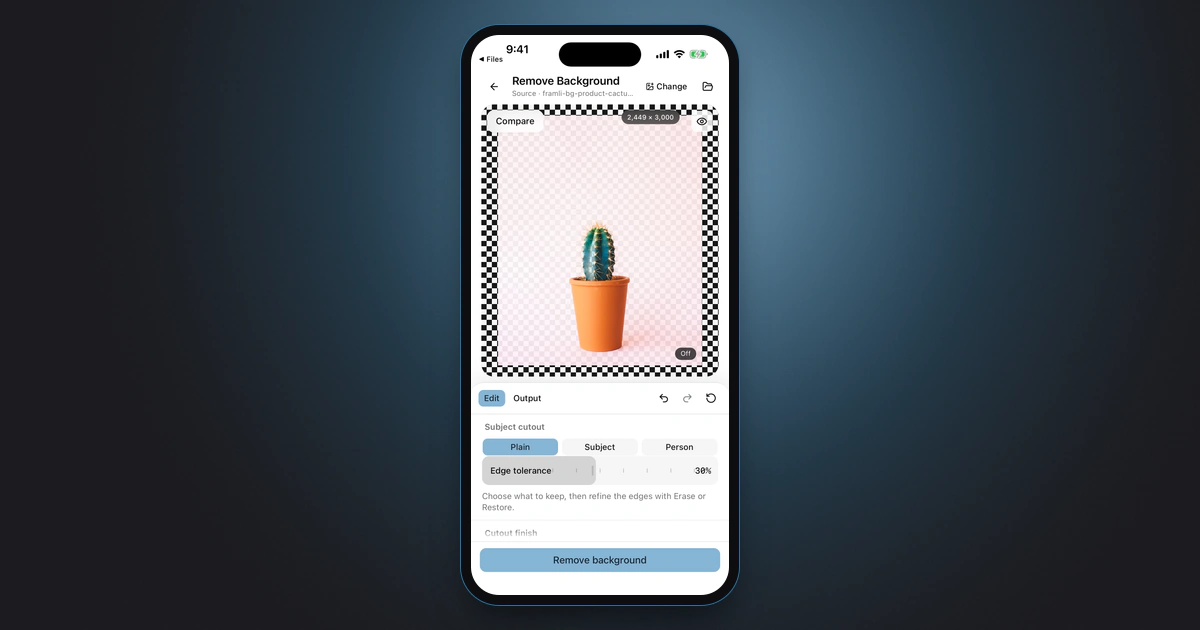
On iPhone, open a photo in Photos, Touch and hold the subject, then tap Copy, Add Sticker or Share to lift it off the background. Apple says this needs iOS 16 or later on iPhone XS, iPhone XR or newer. To save the cutout as a file, How-To Geek and AppleInsider describe a Remove Background quick action in the Files app. For a white background or cleaner edges, use an editor such as Framli’s Remove Background.
The Photos steps follow Apple’s support pages, and the Files steps follow the guides in the sources, so names can shift a little between iOS versions. The Framli steps follow the current version of the app. The screenshots are from the iPhone Simulator with sample images.
Which option fits
- Paste the subject into a message, note or email: Photos, touch and hold (Option 1).
- A saved PNG with a transparent background, without installing an app: Files Remove Background (Option 2).
- A white or colored background, an edge you can fix by hand, an outline or a shadow, or an iPhone on iOS 15: Framli (Option 3).
- Put the subject on a different photo: none of these. Apple says “subjects cannot be pasted onto another photo”, and Framli has no background-swap tool.
Option 1: Lift the subject in Photos (free)
Apple calls these “photo cutouts”. They need iOS 16 or later and an iPhone XS, iPhone XR or newer.
-
Open the photo
Open the photo full screen in Photos. It also works in Safari, Messages and Quick Look, and on a paused video frame.
-
Touch and hold the subject
Touch and hold the person, pet or object. Apple says “a shiny white outline might appear”. Let go to see options. Apple lists Copy, Add Sticker and Share, plus Look Up on some subjects.
-
Copy, share or make a sticker
Tap Copy, then paste the subject into an email, message or note. Tap Share to send it by AirDrop or Mail, or Add Sticker to keep it as a sticker for Messages and Markup.
Photos doesn’t put a cutout file in your library on its own. To get one, copy the subject, open a folder in the Files app, touch and hold an empty spot and tap Paste. BGR reports this saves a PNG; Apple doesn’t document it.
Option 2: Remove Background in the Files app (free, saves a PNG)
Files has a quick action that, according to How-To Geek and AppleInsider, cuts out the subject and saves it as a new PNG in the same folder. They describe it from iOS 16; Apple’s iPhone guide doesn’t document it, and Apple doesn’t say which iPhones support it, so it may need the same newer iPhone as photo cutouts. In the iPhone Simulator, Files didn’t offer it, so there’s no screenshot here. It only works on images saved in Files, not in your photo library.
-
Save the photo to Files
In Photos, select the photo (or several), tap Share, then Save to Files, and pick a folder.
-
Touch and hold the image
Open the Files app, go to that folder, and touch and hold the image without opening it.
-
Tap Quick Actions, then Remove Background
Tap Quick Actions, then Remove Background. The guides in the sources say a new PNG appears next to the original; BGR reports it’s named after the original with “Background Removed” added. If Remove Background isn’t in the menu, your iPhone or iOS version may not support it; use Framli (Option 3).
How-To Geek’s caveat applies to both free options: if the background is busy or close in color to the subject, the cutout may miss parts or keep bits of background, and there’s nothing to adjust.
Option 3: Cut out, fix the edges and add a white background with Framli
Framli’s Remove Background works on your iPhone, so your photos never go to the cloud, and there’s no account. Framli’s Settings say: “Images and documents stay on your device.” It also works on iOS 15, where Photos and Files cutouts are available only from iOS 16.
-
Open Remove Background
In Framli, tap Remove Background (“Make a plain background transparent.”) in the Privacy group.
-
Choose the photo
Tap Choose an image to pick from Photos, or Files to pick from the Files app. Framli doesn’t ask to see your whole photo library. It opens JPEG, PNG, HEIC and WebP images up to 100 MB and 80 megapixels.
-
Pick the cutout mode
Under Subject cutout, pick the mode that matches the photo. Framli starts on Plain.
- Plain for a product or object on a plain wall or table. It removes the color it finds in the photo’s corners, so it needs a plain, even background.
- Subject for any clear subject, such as a pet or a plant. It uses Apple’s subject lifting, keeps every subject it finds, and needs iOS 17 or later.
- Person for photos of people. It uses Apple’s person detection and works from iOS 15. It keeps every person it finds, together in one cutout; to drop one person, paint them out with Erase (see the next step).
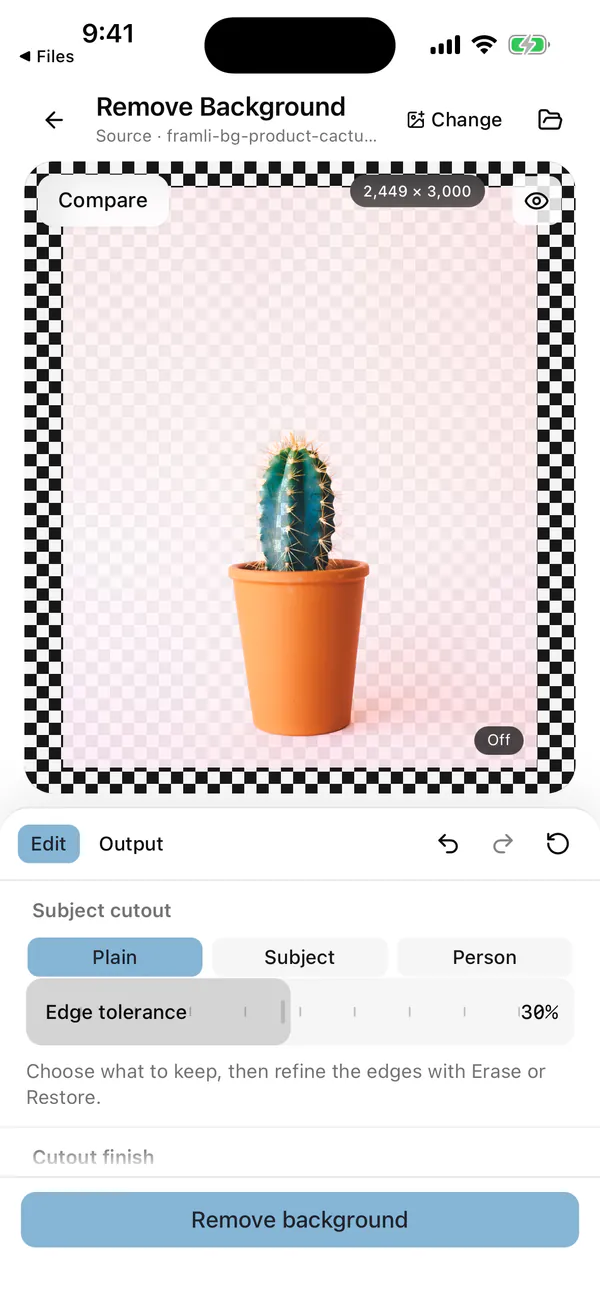
Plain mode at 30%. A faint tint of the old background is left; paint it away with Erase. -
Clean up the edge
In Plain mode, drag Edge tolerance (2% to 60%, starting at 18%) until the edge sits where you want it: a higher value clears more of the colors close to the background, but it can also eat into pale parts of the subject, so raise it a little at a time and watch the edges. If a tint of the old background is left, as in the screenshot above, paint it away with Erase. The slider shows in every mode, but it has no effect in Subject and Person. For spots any mode gets wrong, use Manual edge repair: pick Erase to remove more or Restore to bring parts back, set the Brush width, and paint over the spot.
-
Choose the finish
Under Cutout finish, choose Transparent to keep a see-through background, or Color fill for a solid color. With Color fill, a row of color swatches appears right below: white, near-black, red, yellow and blue, then Custom, which opens a picker where you can choose any color or type a HEX code. Below that, Outline (starting at 0px) has its own row of swatches for the outline color, and further down there’s a Shadow slider.
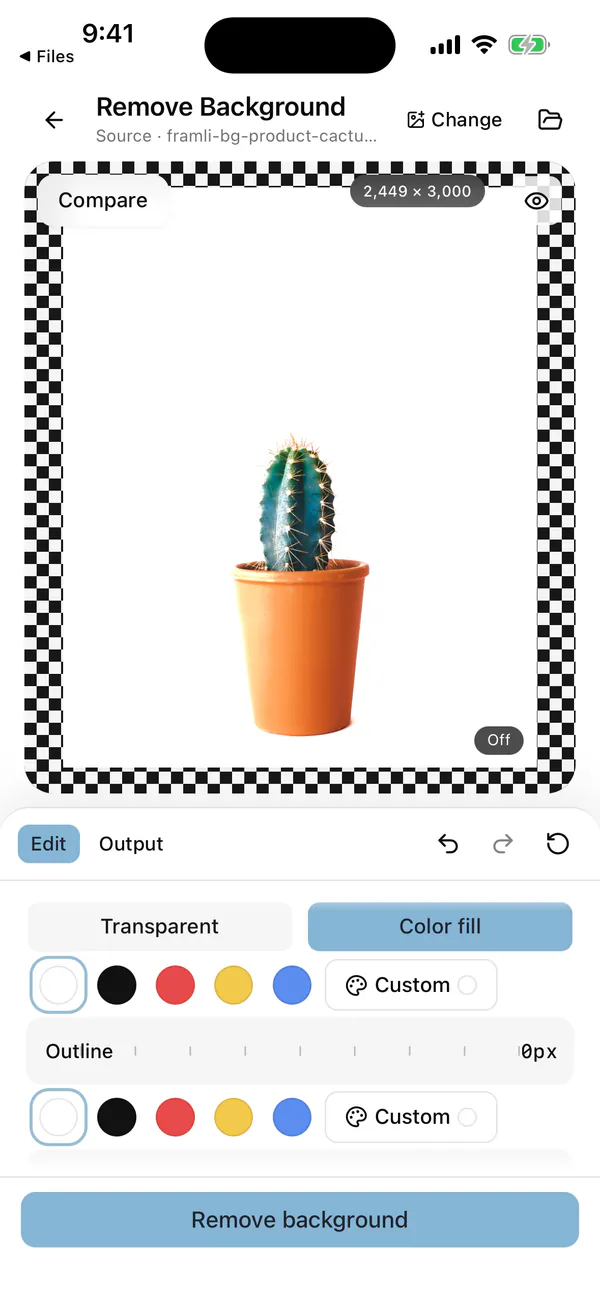
Color fill puts the subject on a solid color. -
Remove the background
Tap Remove background. If Person mode finds nobody, Framli says “No person was found in this image.”; try another mode.
-
Save or share the cutout
The result screen shows a line with the width × height in pixels, “PNG” and the file size. Tap Save/share to open the iOS share sheet, then save or send the cutout from there. Every result is a PNG: with Transparent the background is see-through, and with Color fill it’s solid. Continue keeps editing from the cutout, and Edit goes back to your settings.
Editing and previews in Framli are free, and your first 3 saved or shared results are free too. After that, saving needs Framli Pro. Each cutout you save uses one free save, and sharing the same result again doesn’t use another. Every export is a fresh file without camera or location details.
Transparent or white: which to save
- Transparent (PNG) is for putting the subject on top of something else: a slide, a document, a design app, a sticker. An app or site that doesn’t support transparency may fill the see-through area with a color, so check where you’re posting.
- White (Framli’s Color fill with the white swatch) is for listings, ID-style photos and forms that want a plain background. It saves as a solid PNG, so it doesn’t depend on the app showing transparency.
- Need a JPG or a smaller file? Convert the result with Framli’s Image converter (JPEG has no transparency, so use it only after Color fill), or set the exact pixel size a site asks for with the Image resizer.
When the cutout goes wrong
- Touch and hold does nothing. The iPhone is older than iPhone XS / XR, it’s not on iOS 16, or the photo has no clear subject. Apple doesn’t document the Files quick action, so it may not be offered there either. On an older iPhone, use Framli’s Plain or Person mode.
- Part of the subject is missing, or background is left over. Busy or same-color backgrounds confuse automatic cutouts. In Framli, try another mode (Person for people), move Edge tolerance if you’re in Plain, then fix the rest with Manual edge repair.
- Hair or fur looks cut off. Fine detail is the hardest part for any automatic cutout. In Plain mode, lower Edge tolerance. In any mode, paint the missing parts back with Restore, or retake the photo against a plain, contrasting background.
- Framli says “Subject background removal requires iOS 17 or later.” Subject mode needs iOS 17. On iOS 15 and 16, use Person or Plain.
- Framli won’t open the image. The file is another format, such as RAW (Framli opens JPEG, PNG, HEIC and WebP), or it’s over 100 MB or 80 megapixels (size limits).
Limits
- No new backgrounds. Neither Photos nor Framli puts the subject onto another photo or a generated scene. Framli has no generative fill; Color fill gives a solid color only.
- Photos cutouts need iOS 16 and iPhone XS / XR or later, and Photos keeps no cutout file on its own.
- Files works only on images saved in Files and has no settings.
- Framli exports up to 8,192 px per side and 32 megapixels, removes camera and location data from every export, and runs on iPhone only (iOS 15 or later; Subject mode needs iOS 17). It doesn’t edit video. More on privacy: how Framli handles your photos.
- Removing a person or object from the scene is a different job from removing the background, and this page doesn’t cover it.
All of Framli’s tools are listed on Framli’s home page.
Sources
- [1]Apple Support: Create and share photo cutouts on your iPhone
- [2]Apple iPhone User Guide: Lift a subject from the photo or video background
- [3]How-To Geek: How to quickly remove the background from images on iPhone or Mac
- [4]AppleInsider: How Apple's Files app is getting better in iOS 16 (Remove Background saves a PNG)
- [5]BGR: How to remove the background from an iPhone photo in under 5 seconds
FAQ
Can I remove the background from a photo on iPhone for free?
Yes, on a supported iPhone. On iOS 16 or later, touch and hold the subject of a photo in Photos and tap Copy or Share; Apple lists iPhone XS, iPhone XR and later for photo cutouts. How-To Geek and AppleInsider also describe a Remove Background quick action in the Files app that saves a new PNG.
How do I make the background of a photo white on iPhone?
Photos and Files only make the background transparent. To put the subject on white, use an editor with a fill option, such as Framli's Remove Background with Color fill.
Why doesn't touch and hold lift the subject on my iPhone?
Photo cutouts need iOS 16 or later on iPhone XS, iPhone XR or a newer model, and a clear subject. Framli's Plain and Person modes work from iOS 15; its Subject mode needs iOS 17.
How do I save the cutout as a separate file?
How-To Geek and AppleInsider describe the Files app's Remove Background quick action (touch and hold the image, tap Quick Actions, then Remove Background), which they say saves a PNG in the same folder. In Framli, tap Save/share on the result and save it from the iOS share sheet.
Is my photo kept private when I remove the background?
With Framli, yes: it works on your iPhone, and your photos never go to the cloud. Background-removal websites process the photo on their own servers, so avoid them for private photos.