
How to Convert HEIC to JPG on iPhone (Free or in Bulk)
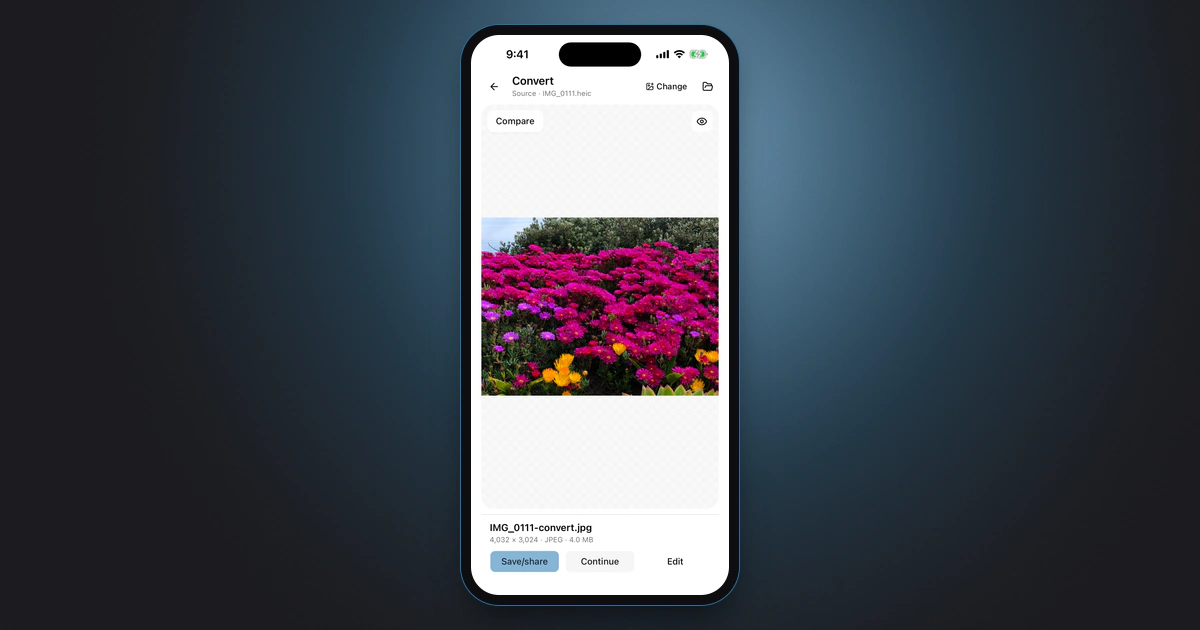
To convert a HEIC photo to JPG on iPhone for free, copy it in Photos (Share > Copy Photo), open the Files app, long-press inside a folder and tap Paste: the pasted copy is a JPG. For many photos, use a Shortcuts shortcut with Convert Image, or Framli’s Batch tool. To stop new HEIC photos, set Settings > Camera > Formats to Most Compatible.
The Settings steps follow Apple Support’s HEIF article, and the Files and Shortcuts tricks follow the guides in the sources, so names can shift a little between iOS versions. The Framli steps follow the current version of the app, and the screenshots are iPhone Simulator captures with a sample photo.
Why iPhone photos are HEIC, and when you need JPG
HEIC is the file extension for HEIF (High Efficiency Image File Format), the format the iPhone camera uses when Settings > Camera > Formats is set to High Efficiency. Apple says HEIF “offer[s] better compression than JPEG”, so photos “use less storage space on your devices and iCloud Photos, while preserving the same visual quality.”
You only need a JPG when the place you’re sending the photo doesn’t accept HEIC: an upload form, an older Windows PC, or a website that lists “JPG only”. Sending to another iPhone, iPad or Mac usually works as it is. Apple also notes that when you share by AirDrop, Messages or email and the receiving device doesn’t support HEIF, the photo “might automatically be shared in a more compatible format, such as JPEG.”
Not sure a photo is HEIC? Framli’s Convert screen shows the source file name at the top, for example “IMG_0111.heic”.
Which option fits
- One or a few photos, right now: copy and paste into Files (Option 1).
- Dozens of photos, free, and you don’t mind a few minutes of setup: a Shortcuts shortcut (Option 2).
- You want JPEG, PNG or WebP, a quality setting, and up to 50 photos per run without building a shortcut: Framli (Option 3).
- You never want HEIC again: switch the camera to Most Compatible (see “Stop your iPhone saving HEIC”).
- You’re moving photos to a Mac or PC with a cable: let the Photos transfer setting convert them (same section).
Option 1: Copy and paste into Files (free, one or a few photos)
-
Copy the photo in Photos
Open Photos, select the photo (or tap Select and pick a few), tap the Share button, then tap Copy Photo (TapSmart’s name for it; with several photos it may read Copy Photos).
-
Paste it into a folder in Files
Open the Files app, go to a folder such as On My iPhone or iCloud Drive, long-press an empty area and tap Paste. TapSmart reports that the pasted file is “a freshly-converted JPEG file.” Apple doesn’t document this trick.
-
Share the JPG from Files
Long-press the new file and tap Share to send it, or upload it from Files on the website that rejected the HEIC.
The JPGs stay in Files, not in your Photos library. Neither Apple nor TapSmart says whether the pasted copy keeps the photo’s date and location, so check one file first if that matters.
TapSmart also describes a share-sheet option: in Photos, tap Share, then Options at the top, and choose Most Compatible before sending by Mail, Messages or AirDrop. Apple’s pages don’t mention it, so if you don’t see it, use the copy and paste above. Apple does say that when the receiving device doesn’t support HEIF, AirDrop, Messages or email “might automatically” send a more compatible format.
Option 2: Make a Shortcuts shortcut to convert HEIC to JPG in bulk (free)
Apple’s Shortcuts guide lists Select Photos as an action that gets photos for the actions after it. These steps follow PCMag and Hongkiat.
-
Create a new shortcut
Open the Shortcuts app, tap the plus button (+), then search for Select Photos and add it. Turn on Select Multiple so you can pick many photos at once.
-
Add Convert Image and choose JPEG
Search for Convert Image and add it. PCMag says it should default to JPEG; if it shows HEIF, tap it and choose JPEG. Hongkiat notes that expanding the action shows Quality and Preserve Metadata options. Neither says for sure what Preserve Metadata keeps, so check one converted photo if the date and location matter.
-
Save the JPGs to an album
Search for Save to Photo Album, add it and pick an album. A new album such as “JPG” keeps the converted copies apart from the originals.
-
Run it, or add it to the share sheet
Name the shortcut and tap it to run, then pick the photos. To run it from Photos instead, open the shortcut, tap Details and turn on Show in Share Sheet.
Option 3: Convert one photo or 50 at once with Framli
Framli converts photos between JPEG, PNG, WebP and HEIC on your iPhone, so your photos never go to the cloud. Framli’s Settings say “Images and documents stay on your device.”
-
Open Convert, or Batch for many photos
In Framli, tap Convert (“Change the file format.”) in the Essentials group. For many photos, open Batch in the Workflow group instead: it applies one setting to up to 50 images. Batch starts on Resize, so under Apply to every image tap Convert, then tap JPEG under Output format (Batch’s Convert starts on PNG).
You can also start from Photos: tap Share, then Framli. The photo waits in Framli under “Shared files”; pick Convert there.
-
Choose your HEIC photos
Tap Choose an image (or Choose images in Batch) to pick from Photos, or Files to pick from the Files app. Framli doesn’t ask for access to your whole photo library to do this.
-
Check JPEG and set the quality
Convert opens a HEIC photo with JPEG already selected under Output format (the buttons read JPEG, PNG, WEBP and HEIC), so there’s nothing to tap. Set Quality anywhere from 10% to 100%; it starts at 80%. Higher quality means a bigger file.
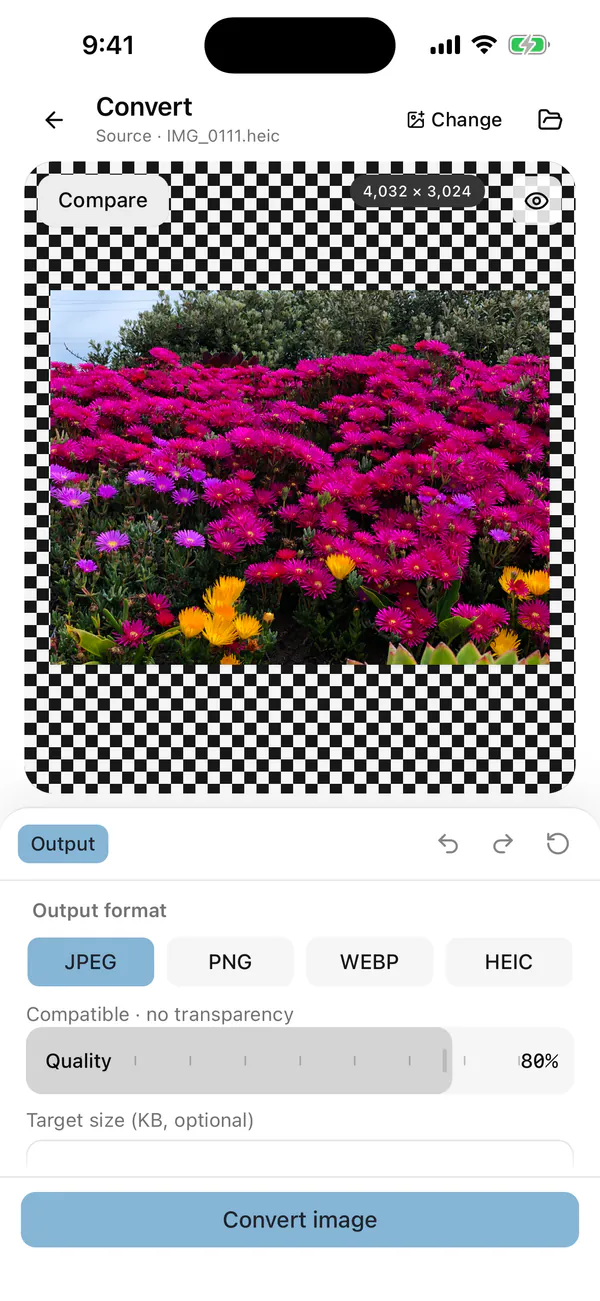
A HEIC photo opens in Convert with JPEG already selected and Quality at 80%. -
Convert the photo
Tap Convert image. In Batch, the button reads Process 3 images, with the number of photos you picked.
-
Save the JPG to Photos or Files
On the result screen, the line under the file name shows the pixel size, JPEG and the file size. Tap Save/share (in Batch, Save all with the number of images). The iOS share sheet opens: tap Save Image to put the JPG in Photos, or Save to Files. You can save or share up to 50 results at once. Continue keeps editing from the JPG, for example to compress it, and Edit goes back to your settings.
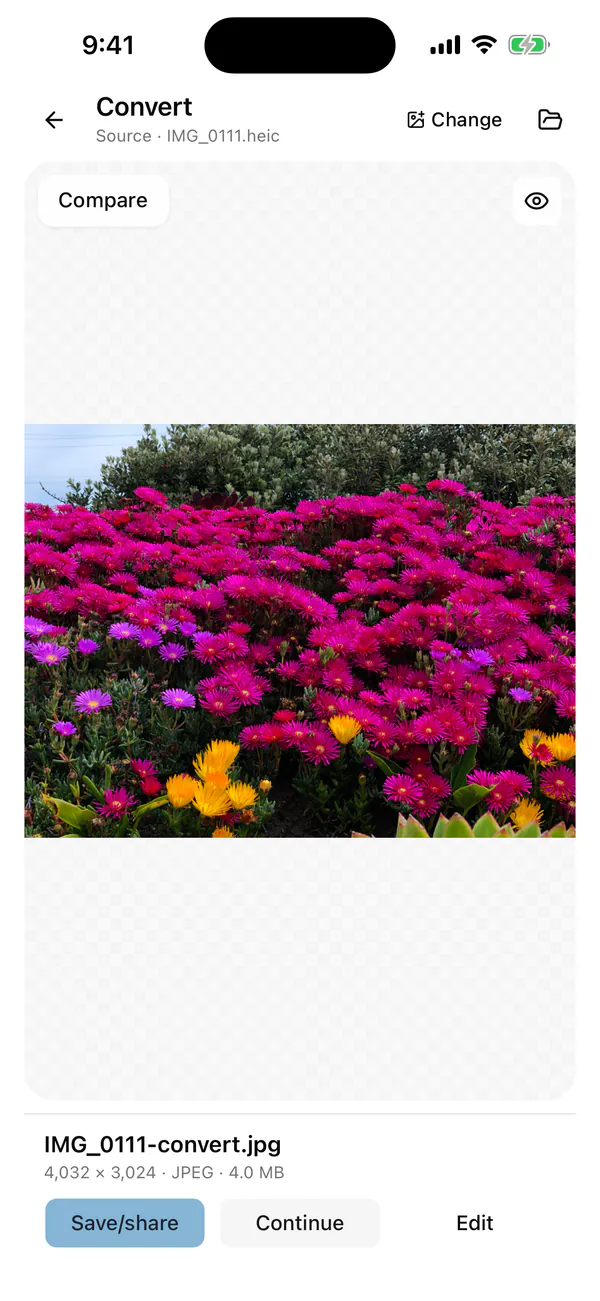
Save/share opens the iOS share sheet.
Editing and previews in Framli are free, and your first 3 saved or shared results are free too. After that, saving needs Framli Pro. Framli’s Settings shows how many are left, for example “3 free saves remaining.” In Batch, each image uses one free save, so a batch of 3 uses all 3, and a batch larger than the free saves you have left can’t be saved without Pro.
More on formats and limits: Image converter and Batch processing.
Stop your iPhone saving HEIC
Converting fixes the photos you already have. To get JPG from now on:
-
Switch the camera to Most Compatible
Open Settings, tap Camera, tap Formats, then tap Most Compatible. In Apple’s words: “All new photos and videos will now use JPEG or H.264 format.” Videos change too, and both take more storage. Photos you already took stay HEIC.
-
Convert automatically when you copy to a computer
Apple says that when you import photos from an iPhone to a Mac or PC over USB, they “might be converted to JPEG or H.264”. To stop that, Apple says to “open Settings, tap Apps, tap Photos, then scroll down and tap Keep Originals.” So if you want the conversion, check that Keep Originals isn’t the chosen option there.
Apple’s page for Windows users gives the same advice: set Formats to Most Compatible so the camera captures “in JPEG and H.264 formats.”
To put several photos into one file instead, see how to convert images to PDF on iPhone.
If the JPG doesn’t work
- Paste is missing in Files. Try touching and holding an empty spot inside a folder, rather than on another file or in Recents.
- The website still rejects the photo. Make sure you picked the converted copy, not the HEIC original. Some forms also cap the file size; use Framli’s Image compressor or Image resizer to make it smaller.
- The JPG isn’t in Photos. Files and Shortcuts keep their copies where you saved them. In Framli, nothing is saved until you tap Save/share.
- Framli says “This image could not be opened. Choose JPEG, PNG, HEIC or WebP.” The file is in another format, such as RAW. Framli also won’t open images over 100 MB or 80 megapixels.
HEIC vs JPG: what converting can’t do
- Make the photo better. JPG is a compressed format too, so converting can only keep or lose detail. Keep the HEIC original.
- Keep the date and location in Framli. Every Framli export is a fresh file without location, camera or date metadata, and there’s no setting to keep it. Use the Files or Shortcuts route for photos that need it, after checking one result.
- Keep HDR or motion. Framli saves standard color (SDR sRGB), so an HDR look is lost, and it doesn’t make animated images. From a Live Photo, Framli converts the still photo only; the motion is dropped.
- Go beyond Framli’s size limit. Exports are capped at 8,192 px per side and 32 megapixels.
- Run on iPad. Framli is made for iPhone (iOS 15 or later).
Sources
- [1]Apple Support: Using HEIF or HEVC media on Apple devices
- [2]Apple Support: Transfer photos and videos from your iPhone or iPad to your Mac or PC
- [3]Apple Shortcuts User Guide: Action connections (Select Photos into Convert Image)
- [4]Apple Shortcuts User Guide: Launch a shortcut from another app on iPhone or iPad
- [5]TapSmart: How to share Apple's HEIC photos as JPG files
- [6]PCMag: Convert iPhone photos from HEIC to JPG with Apple Shortcuts
- [7]Hongkiat: How to convert images on iPhone and iPad (Convert Image options)
FAQ
Can I convert HEIC to JPG on iPhone without an app?
Yes. Copy the photo in Photos and paste it into a folder in the Files app, or build a Shortcuts shortcut with the Convert Image action set to JPEG. To stop new photos saving as HEIC, set Settings > Camera > Formats to Most Compatible.
How do I convert many HEIC photos to JPG at once?
Use a Shortcuts shortcut that starts with Select Photos (with Select Multiple on) and then Convert Image, or use Framli's Batch tool, which takes up to 50 photos per run. Files copy and paste also works for a handful of photos.
Does converting HEIC to JPG lose quality?
It can lose a little, because JPG is also a compressed format and converting re-encodes the photo. Keep the HEIC original, and pick a high quality setting if your converter offers one.
Will the JPG keep the photo's date and location?
Not with Framli: every Framli export is a fresh file without camera, date or location details, and there's no setting to keep them. If you need that information kept, test the Files or Shortcuts method on one photo first and check the result.
Why are some of my iPhone photos HEIC and some JPG?
The camera saves HEIC when Settings > Camera > Formats is set to High Efficiency and JPEG when it's set to Most Compatible, so photos taken under different settings, or saved from other apps and websites, can end up in different formats.