
How to Convert an Image or Photo to PDF on iPhone
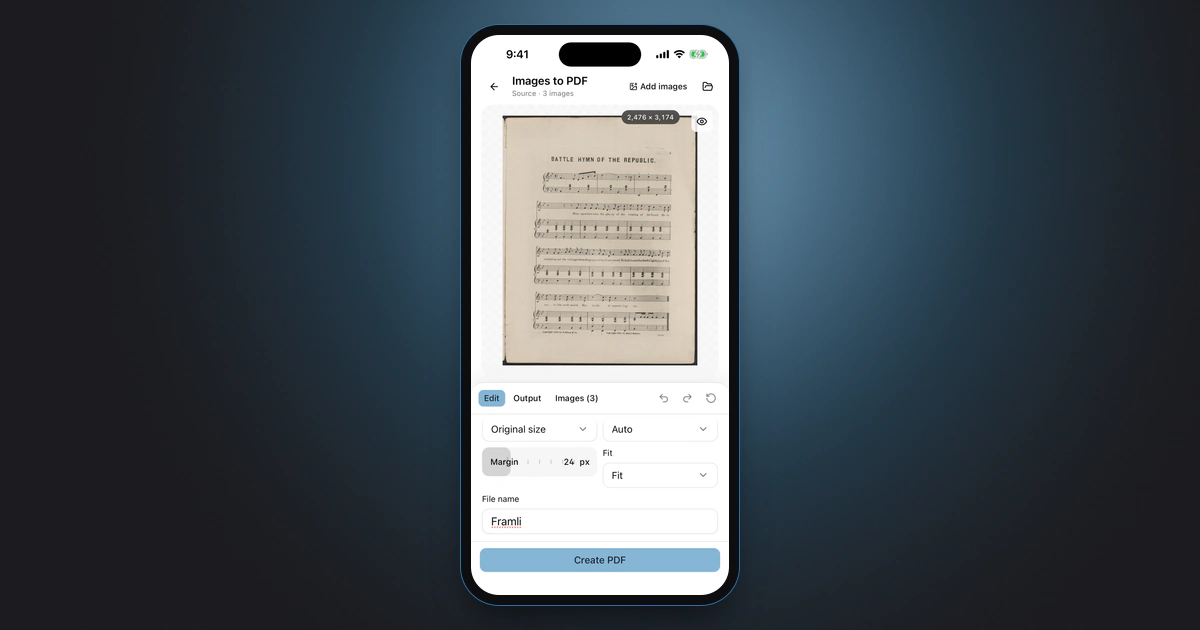
To turn photos into one PDF on iPhone for free, save them to the Files app, select them, tap the More button, open Quick Actions and tap Create PDF. wikiHow and MakeUseOf also describe a Photos trick: tap Share, then Print, and pinch out on the print preview to open it as a PDF. Framli’s Images to PDF puts up to 50 images into one PDF on your iPhone, in the page order you set.
The steps for Apple’s apps follow Apple’s iPhone User Guide where Apple documents them, and the guides in the sources where it doesn’t, so names can shift a little between iOS versions. The Framli steps follow the current version of the app. The screenshots are from the iPhone Simulator with sample images.
Which option fits
- One photo, or a few, right now: Photos Print (Option 1). Nothing to install.
- Images saved in the Files app, or from email and downloads: Files Create PDF (Option 2).
- You want the PDF kept in a library you can read later: Books (Option 3).
- You make PDFs from photos every week: a Shortcuts shortcut with Make PDF (Option 4).
- Up to 50 mixed JPEG, PNG, HEIC and WebP images in one PDF, with page settings: Framli (Option 5).
- A paper document: scan it instead (see “Scanning paper instead?”).
Option 1: Photos > Print > pinch to PDF (free)
Apple documents the Print button in Photos for “AirPrint-enabled” printers. You don’t need a printer for this trick, though: wikiHow and MakeUseOf describe opening the print preview as a PDF and saving it. It isn’t on Apple’s pages.
-
Select the photos
Open Photos. For one photo, open it. For several, tap Select and tap them. Photos may not keep the order you tap: in our Simulator test with three sample images, the second one tapped came out as page 1.
-
Tap Share, then Print
Tap the Share button, then Print (scroll down the list if you don’t see it).
-
Pinch out on the preview
On the print Options screen, the preview shows each page (“Page 1 of 3”), so check the order here. wikiHow and MakeUseOf say that spreading two fingers on the preview opens it full screen as a PDF.
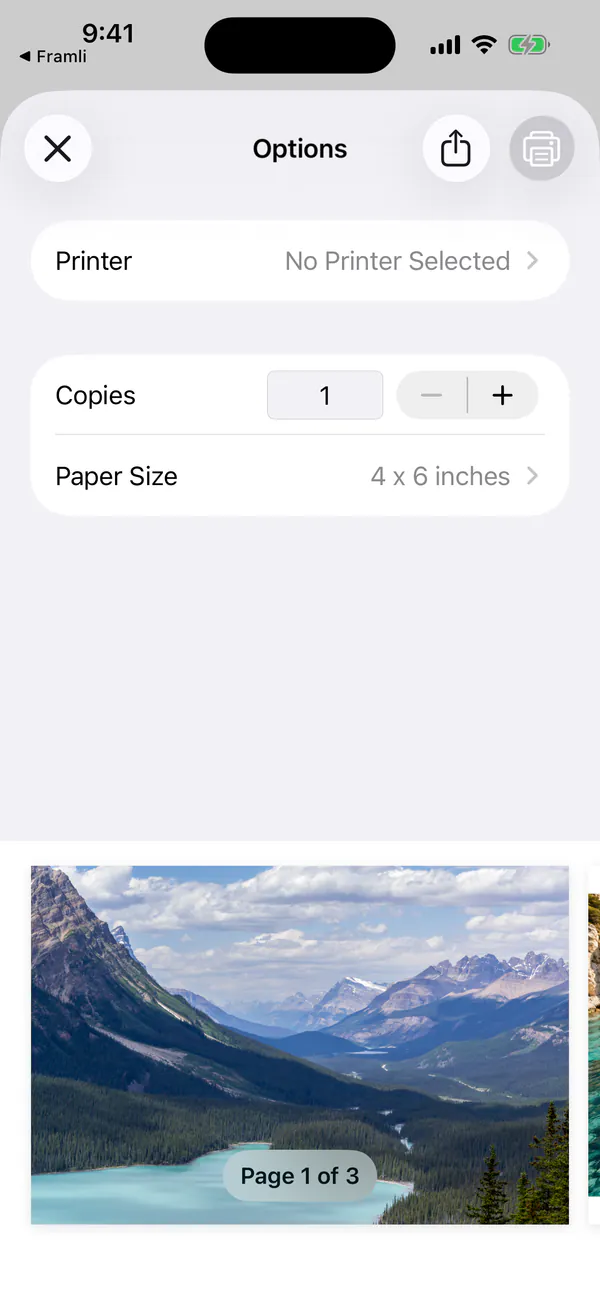
The print preview shows the page order. Check it before you save. -
Save the PDF
From the PDF view, wikiHow and MakeUseOf say to tap the Share button and save the PDF to Files.
The catch: Print lays each photo on a paper-sized page, so a photo that doesn’t match the paper’s shape gets white borders. MakeUseOf suggests picking a larger paper size under Paper Size in the print options to reduce them.
Option 2: Files > Create PDF (free)
The Files app has a Create PDF quick action that makes one PDF from images stored in Files. Apple’s iPhone guide doesn’t cover it; MakeUseOf says it works “without affecting the quality of the images”. Photos in your library have to be saved to Files first.
-
Save the photos to Files, if they're in Photos
In Photos, select the photos, tap Share, then Save to Files, and pick a folder.
-
Select the images in Files
Open the Files app and go to that folder. For one image, touch and hold it. For several, tap the More button (•••) at the top, tap Select, and tap the images.
-
Tap Create PDF
For one image, look for Create PDF in the menu, under Quick Actions. For several, tap the More button (•••) in the toolbar at the bottom, tap Quick Actions to open it, then tap Create PDF (it sits with Convert Image, Rotate Right and Rotate Left). Open the new PDF and check the page order before you send it.
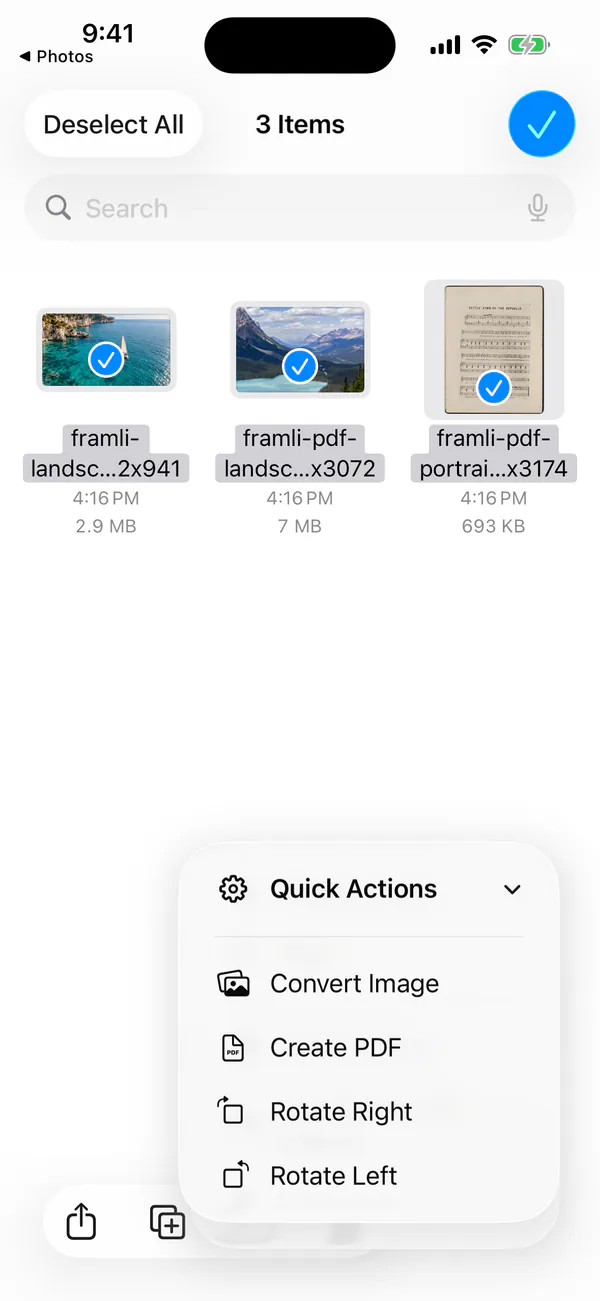
With several images selected, Create PDF is inside Quick Actions.
To rename the PDF, touch and hold it and tap Rename.
Option 3: Photos > Share > Books (free)
Select the photos in Photos, tap Share, and choose Books from the app row (tap More if it isn’t there). MakeUseOf reports that Books “will create a PDF and save it” in your Books library; Apple’s Books guide only covers PDFs you receive in other apps. To send the PDF on, Apple says to tap Library, tap the More button below the PDF, tap the Share button, then “choose a share option such as AirDrop, Mail, or Messages”.
Books syncs its library through iCloud if you’ve turned that on, so use Files or Framli for documents you’d rather keep only on the iPhone.
Option 4: A Shortcuts shortcut with Make PDF (free, reusable)
Build it once, then reuse it. These steps follow How-To Geek; Apple’s guide doesn’t describe this shortcut.
-
Create the shortcut
Open Shortcuts and tap the plus button (+). Add Select Photos and turn on Select Multiple.
-
Add Make PDF and Share
Search for Make PDF and add it, then add Share (or Save File) so you can save the result to Files. Name the shortcut.
-
Run it
Tap the shortcut, pick the photos, then save or share the PDF.
On iOS 26 and later, Apple’s Preview app also exports an image as a PDF. Apple’s steps: open the image in Preview, tap the button next to the file name, tap Export, and pick PDF from the formats. That’s one image per file.
Option 5: Put up to 50 images into one PDF with Framli
Framli’s Images to PDF builds one PDF from up to 50 images, one page per image, and you can mix JPEG, PNG, HEIC and WebP. It runs on your iPhone, so your photos never go to the cloud, and there’s no account. Framli’s Settings say: “Images and documents stay on your device.”
-
Open Images to PDF
In Framli, tap Images to PDF in the Workflow group. Framli can also take up to 20 images from another app’s share sheet: tap Framli (it may show as Save to Framli). This guide picks the images from inside Framli.
-
Choose your images
Tap Choose images to pick from Photos, or Files to pick from the Files app. Framli doesn’t ask for access to your whole photo library to do this. Each image can be up to 100 MB and 80 megapixels. The screen then opens on the Edit tab, next to Output and Images (N), where N is the number of images.
-
Check the page order
Open the Images (N) tab. The images are numbered 1, 2, 3 in page order. To change the order, use an image’s move-up or move-down button; there’s no dragging. Its remove button takes it out of the list. Careful: tapping a row deselects that image, and a deselected image is left out of the PDF. Tap it again to put it back. To add more, up to 50, tap Add images here or at the top of the screen.
-
Set the page options
On the Edit tab, set:
- Paper: starts on Original size, which makes each page the image’s own size, so pages can differ. The menu also has A4 and US Letter, which give every page the same paper size.
- Orientation: starts on Auto, which turns a page sideways when the image is wider than it is tall; the menu also has Portrait and Landscape.
- Margin: 0 to 96 px, starting at 24 px. Set it to 0 for no border.
- Fit: Fit shows the whole image on the page; Fill covers the page, so the edges of the image can be cut off.
- File name: starts as “Framli”, so the file is Framli.pdf. Letters, numbers, dots, dashes and underscores are kept; spaces and other characters become dashes.
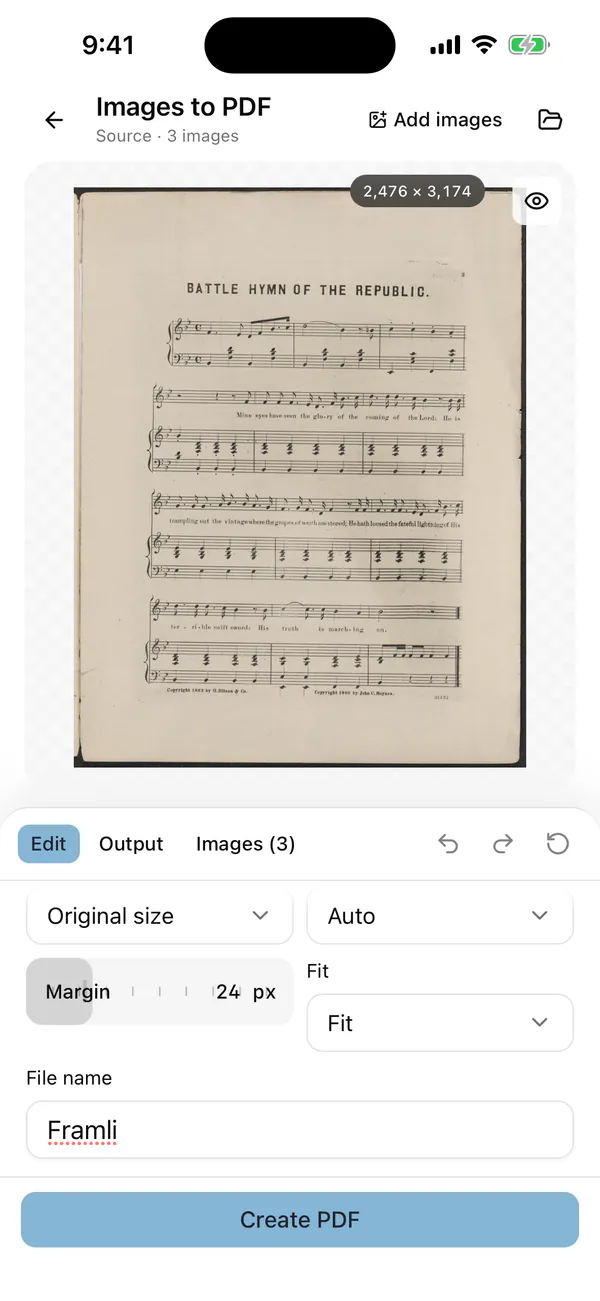
The Edit tab, scrolled down: Original size and Auto are the Paper and Orientation defaults. The preview shows the first image. -
Create the PDF
Tap Create PDF.
-
Save or share the PDF
The result screen shows the file name and page count, for example “Framli.pdf” and “PDF · 3 pages” for three images. Tap Save/share to open the iOS share sheet, then save or send the PDF from there. There’s no separate Save button; saving always goes through the share sheet. The other buttons are Open file and Edit.
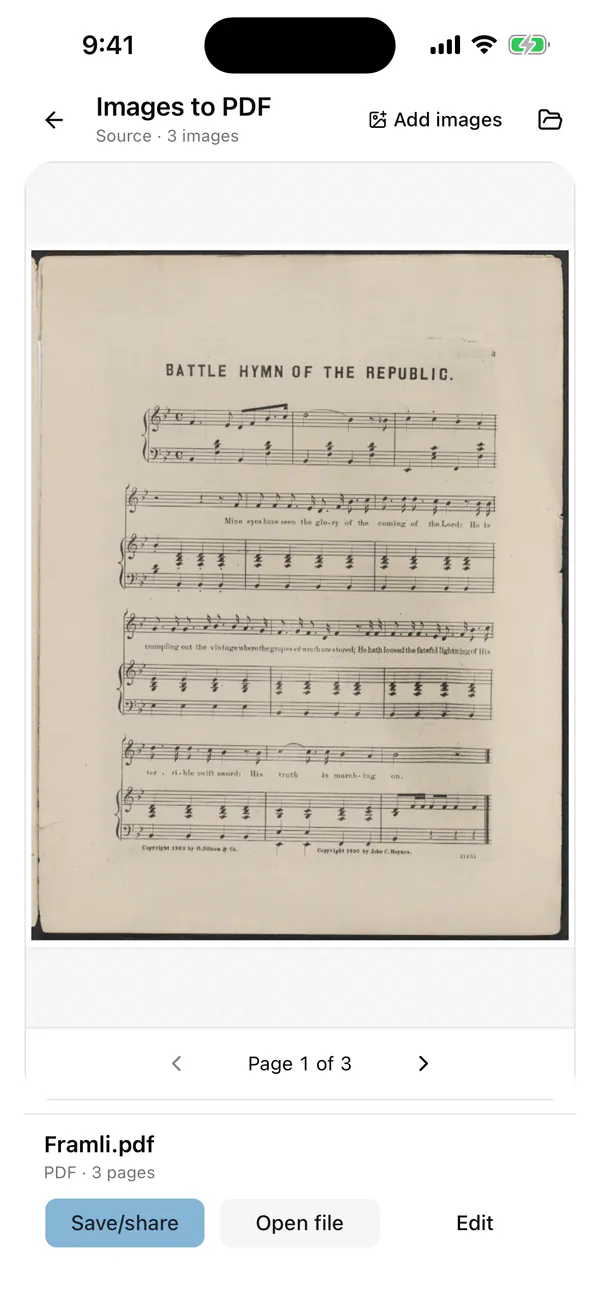
Saving goes through the iOS share sheet.
Editing and previews in Framli are free, and your first 3 saved or shared results are free too. One PDF counts as one save, however many pages it has, and sharing the same PDF again doesn’t use another. After that, saving needs Framli Pro.
Get the page order right
- Photos: it may not keep the order you tapped the photos in (in our Simulator test it didn’t), and Apple doesn’t document the page order for Print. Check the “Page 1 of N” preview before you save.
- Files: the order isn’t documented either, so check the PDF. If it comes out wrong, rename the images (01, 02, 03…) and try again.
- Framli: you set the order. Check the numbered list on the Images tab and move images up or down before you tap Create PDF, and make sure every image you want is still selected.
If the PDF isn’t right
- White borders around the photos. That’s Print fitting the photo to paper. Use Files Create PDF, or Framli with Paper set to Original size and Margin set to 0.
- Print isn’t in the share sheet. Scroll down the list of actions below the row of apps.
- Create PDF is missing in Files. Open Quick Actions in the menu; Create PDF is inside it. If it still isn’t there, try opening the folder that holds the images and selecting them there.
- Framli won’t open the image. Use a JPEG, PNG, HEIC or WebP file. Framli also won’t open images over 100 MB or 80 megapixels (size limits).
- A page is missing from the Framli PDF. The image was deselected on the Images tab. Tap its row so it’s selected again, then tap Create PDF.
- The PDF is too big to send. Try making the images smaller before you build the PDF, with Framli’s Image resizer or Image compressor. Framli doesn’t compress PDFs themselves.
Turn a PDF back into images
Framli’s PDF to Images works the other way: it will “Render selected pages as PNG or JPEG at your chosen resolution.” It opens PDFs up to 500 pages and 250 MB. If a site wants JPG rather than PDF, convert photos directly with Framli’s Image converter (here’s how to convert HEIC photos to JPG); for many at once, see Batch processing. Both PDF tools are on Framli’s home page.
Scanning paper instead?
For a paper document, don’t photograph it and convert: scan it. In Notes, open a note, tap the attachment button, then Scan Documents. Apple says “the document is saved as a PDF in the note.” On iOS 26 the Preview app has Scan Documents too. Framli has a Document Scan tool, but this guide doesn’t cover it.
Limits
- Photos Print adds white borders when a photo’s shape doesn’t match the paper.
- Files needs the images in Files first, so photos take an extra save step.
- Books keeps the PDF in its library, which syncs if Books iCloud sync is on.
- Framli takes up to 50 images per PDF, each up to 100 MB and 80 megapixels, and saves through the share sheet. Its tool list has no PDF compression or password lock, and it’s an iPhone app (iOS 15 or later), with no iPad version.
- No method makes a blurry photo sharp. A PDF only wraps the image.
Sources
- [1]Apple iPhone User Guide: Print photos on iPhone
- [2]Apple iPhone User Guide: Read PDF documents in the Books app
- [3]Apple iPhone User Guide: Export or compress PDFs and images in Preview
- [4]Apple iPhone User Guide: Scan text and documents in Notes
- [5]Apple Mac User Guide: Combine files into a PDF (selection order)
- [6]MakeUseOf: 4 ways to combine multiple images into a PDF on iPhone
- [7]How-To Geek: How to convert images into a PDF file on iPhone (Shortcuts Make PDF)
- [8]wikiHow: How to convert a photo to PDF on an iPhone (Print preview and Files)
FAQ
How do I combine several photos into one PDF on iPhone?
In the Files app, select the images, tap the More button, open Quick Actions and tap Create PDF. wikiHow and MakeUseOf also describe a Photos trick: select the photos, tap Share, then Print, and pinch out on the preview. Photos may not keep the order you tapped, so check the pages. Framli's Images to PDF takes up to 50 images per PDF, in the order you set.
Can I convert a photo to PDF on iPhone without an app?
Yes. The Files app's Create PDF quick action, and the Photos Print, Books and Shortcuts Make PDF methods described by the guides in the sources, all use apps that come with the iPhone and are free.
Can I turn a HEIC photo into a PDF?
Yes. Framli's Images to PDF accepts HEIC, JPEG, PNG and WebP images, and you can mix them in one PDF.
Is it private to convert a photo to PDF on iPhone?
Framli makes the PDF on your iPhone, and your photos never go to the cloud. With Apple's apps, watch where the PDF ends up: a PDF saved to iCloud Drive, or kept in Books with iCloud sync on, is stored in iCloud. Online converters work on their own servers, so avoid them for IDs and private documents.
How do I change the page order in the PDF?
Photos and Files may not keep the order you tapped the images in, so check the pages before you save; in Files, renaming the images 01, 02, 03 first can help. In Framli, the pages follow the numbered list on the Images tab; move an image up or down with its buttons before you tap Create PDF.